
Google Maps Service
NetZoom integrates with Google Maps Services in order to map the locations of your Data Centers and Huts as well as the connections between them.
It is the client’s responsibility to directly subscribe to Google Maps and use their own Client Key or ID to use Google maps in NetZoom.
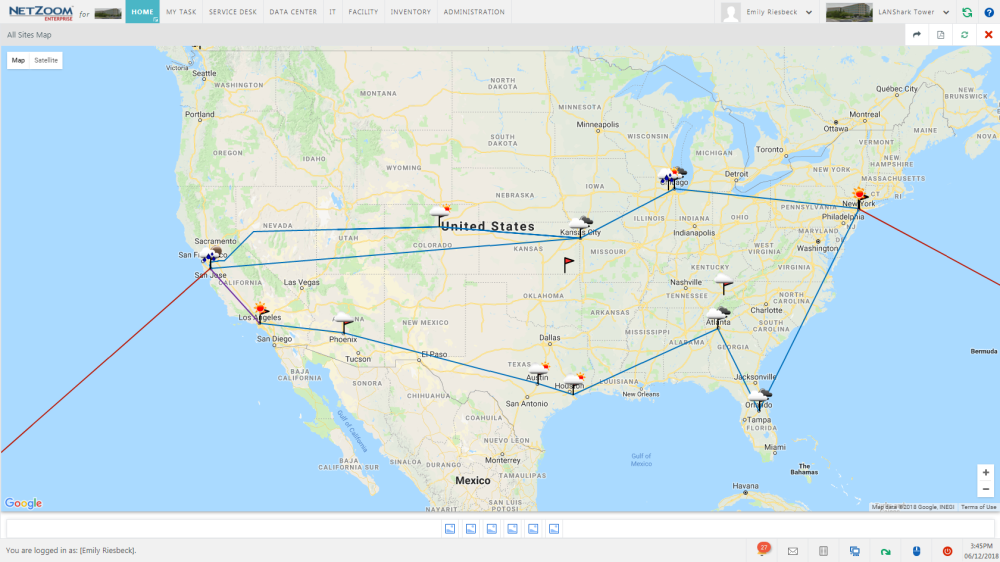
How to integrate NetZoom with a Google Maps Service
- To integrate NetZoom with Google Maps, navigate to the Google Map feature.
Path: Administration/3rd Party Integration/Services/Google Map
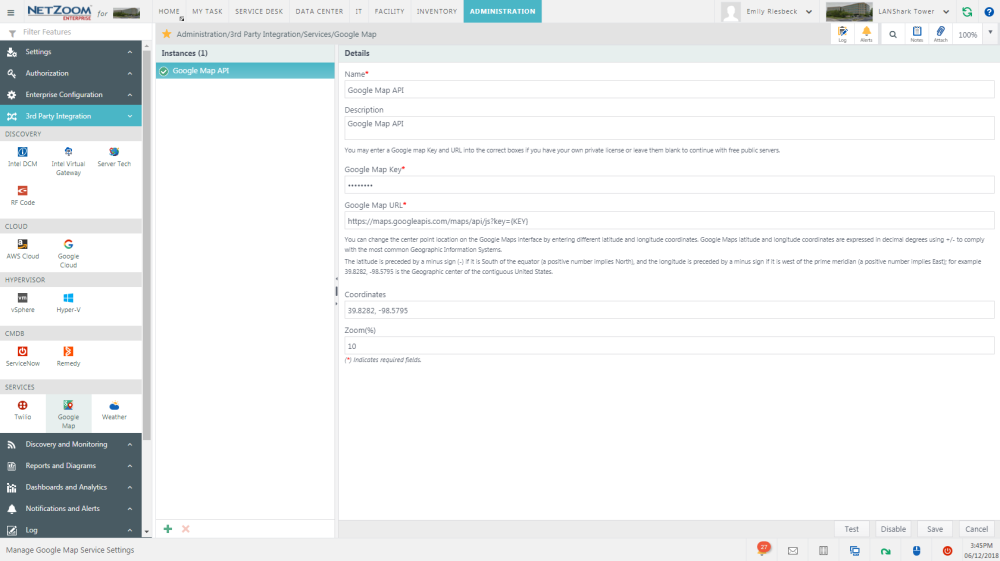
- Click the
 icon at the bottom of the Instances pane. A blank form will appear in the Details pane.
 - Fill out the form. The following fields are available:
- Name: The name of your instance.
- Description: A description of the instance.
- Google Maps key the credentials that authorize you to use your google map service.
- Google Maps URL: the URL of your google map service.
- Coordinates: the center point location on the google maps interface.
- Zoom: the default level of zoom the map will load at.
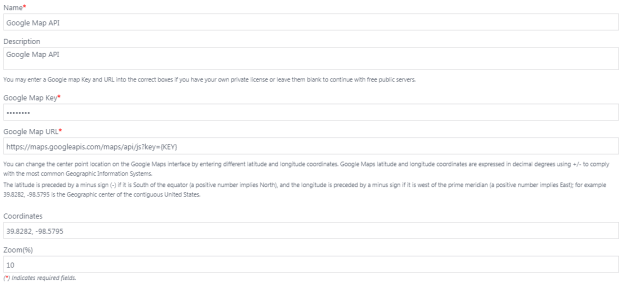
- Click the [SAVE] button to save your instance. It will be added to the Instances pane.
- Once the instance has been created, you can test it using the [TEST] button and enable it using the [ENABLE] button. When an instance has been enabled, it will start automatically generating google maps for your dashboards and features. An instance can be deleted using the
 icon.
icon.
Last Updated: Thursday, August 13, 2020
NetZoom, Inc.